

Please note the following about Organizations:
- Examples of users in an organization would be: Engineer, Buyer, Manager, etc. Anyone who would benefit from knowing what builds, quotes, and orders your organization has worked on and what the status of each of those is.
- Admins have full access to everything on the account.
- Standard Users have access to everything, with the exception that they cannot invite new users.
- We strongly encourage you to have more than one Admin in your organization.
- Admins of your organization are the ones who can add and remove users; Screaming Circuits cannot do that for you unless we have authorized written consent from a high-ranking person in your organization.
- Users can be part of multiple organizations.
- If you have any questions about setting up your organization, please reach out to customer service or chat with us for assistance.
Steps to create your Organization:
- Once you create an account and log in, you can navigate to your account settings in one of two ways.
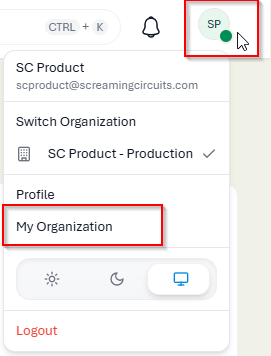
- First, click the circle in the upper right-hand corner of your screen and click on My Organization:
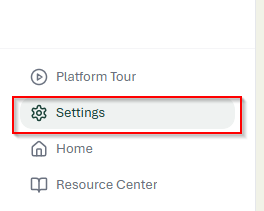
- In the lower left-hand corner of your screen, click on the Settings option:
- First, click the circle in the upper right-hand corner of your screen and click on My Organization:
- Across the top of the screen, you will see several tabs, click on the Organizations tab:

- Under Users, you will see any user that is attached to your organization. Click +Invite Users to add more:

- In the pop-up box, enter the email address of the person you would like to invite, and select the permission settings you would like the user to have.
- Admin means
- Standard Users
- People you invite will get an email to join your organization. They will create their own username and password.
- Once you have invited people, you will see your list of Invites and their status:

- You can revoke or resend an invite. If someone does not receive their invite, ask them to check their Spam/ Junk folders.
- In the list of Users, you will see a More Options button; if you click that, you can edit or deactivate a user.

If you have any questions or would like assistance, please chat with us, email us at sales@screamingcircuits.com